Anomaly OSHow-to guide

How to use Anomaly OS

Short how-to pages for you and your crew. Find the one you need, do it, get back to work.

Start with the basics

Everything, by topic

Start here

What Anomaly OS is for

Every call, text and lead in one place.

When someone calls, texts or fills out your website form, they show up here. You use it for three things:

  • See who reached out.
  • Get back to them fast.
  • Keep track of where each lead stands.

Start here

Words to know

The app uses a few words you may not. Here is what they mean.

  • Lead: a job somebody might hire you for. The app calls a lead an Opportunity.
  • Card: the little box for one lead on your board.
  • Column: one step on your board, like New Lead or Estimate Sent. The app calls it a Stage.
  • Status: whether a lead is Open, Won, Lost or Abandoned. Abandoned is for spam, wrong numbers and double entries.
  • Lead window: the window where you change a lead. See the page called Open a lead.
  • Contact: a customer's name and phone number.
  • Conversation: your calls and texts with one person.
  • Lead Scoreboard: the name of your Dashboard.

Start here

What we do and what you do

So you know what is yours and what to hand to us.

You do:

  • Answer calls and texts.
  • Move your leads on the board.
  • Mark leads Won or Lost.
  • Add notes and book estimates.

We do the setup: your phone number, the automatic texts, logins for your crew, and any setting you want changed. Message us in Slack and we handle it.

Start here

What happens on its own

A few things run without you touching anything.

  • You miss a call: the caller gets an automatic text back.
  • A new lead comes in: a card shows up in your New Lead column and you get a text with a link.
  • You drag a card to Closed: the app marks it Won and moves it to Job Completed — Review Eligible.
  • You drag a card to Lost: the app marks it Lost.
  • You drag a card to Review Requested: the customer gets a review request.
  • The customer opens the link or leaves a review: the card moves to the next review column by itself.

Want one of these changed or turned off? Message us in Slack.

Start here

Log in

We email you your login when your account is set up.

How to do it

  1. Go to app.anomalyos.com.
  2. Type your email and password.
  3. Click Sign in.

Locked out, or never got a login? Message us in Slack.

Start here

Get the phone app

The same leads, calls and texts on your phone.

The button says Get until you download it. Then it says Open.

How to do it

  1. Open the App Store on your iPhone and search for Anomaly OS.
  2. Tap Get to download it, then tap Open.
  3. Log in with the same email and password you use on the computer.

On Android? Message us in Slack and we will point you to it.

Start here

The 5 minute daily check

Do this once a day so nobody waits on you.

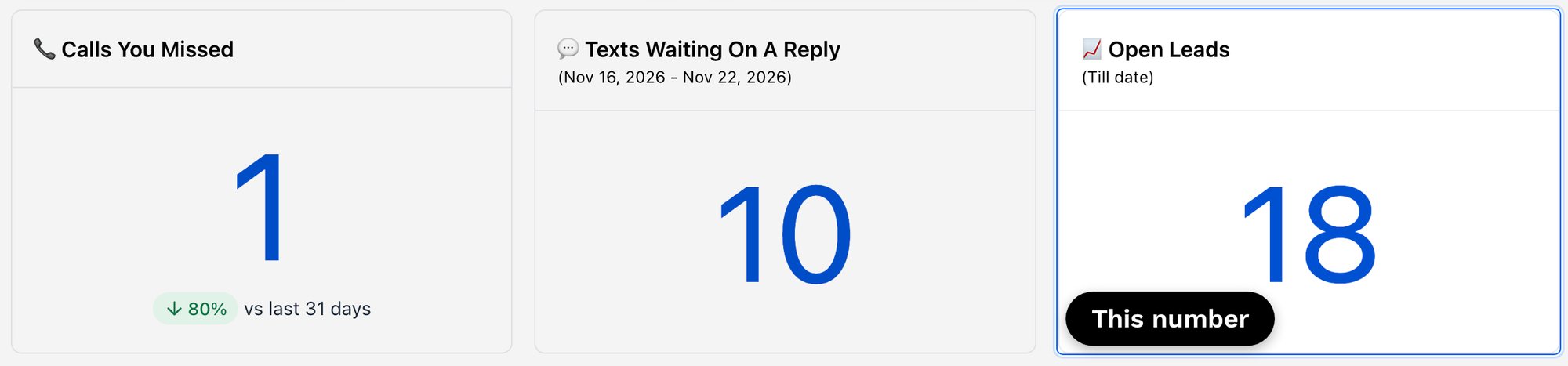
Start with these two boxes on your Dashboard.

How to do it

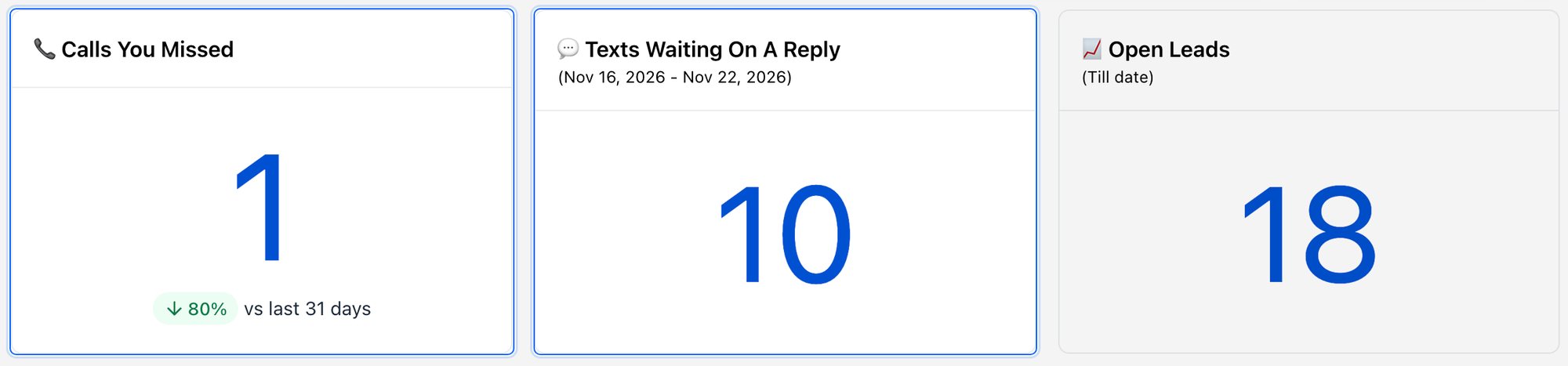
  1. Click Dashboard in the left menu. Look at Calls You Missed and Texts Waiting On A Reply.
  2. Click Conversations in the left menu, then click Unread to see who they are. Call or text them back.
  3. Click Opportunities in the left menu. Move each card to the column where that lead really stands.
  4. Drag the ones you won to Closed and the dead ones to Lost.

Not sure how? See the page called Mark a lead Won or Lost.

TipPick a time and stick to it. First coffee, or right before you head home.

Start here

Add or remove someone on your crew

Each person gets their own login. We set it up.

How to do it

  1. Message us in Slack.
  2. To add someone, send their name, email and cell number.
  3. To remove someone who left, send their name.

We email the new person their login.

Start here

Menu items you may not have

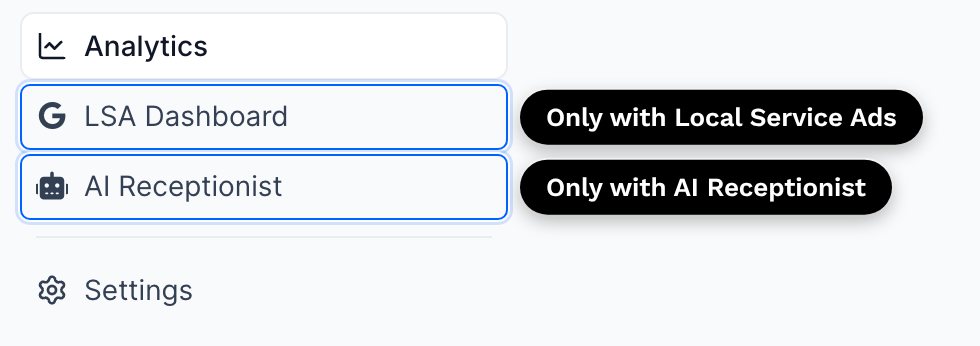
Two items in the left menu only show up if you have that service with us.

The bottom of the left menu.
  • LSA Dashboard: the calls that came from your Google Local Service Ads.
  • AI Receptionist: your AI Receptionist's calls.

Do not see one of them? Then you do not have that service with us.

Your Lead Scoreboard

Read your Lead Scoreboard

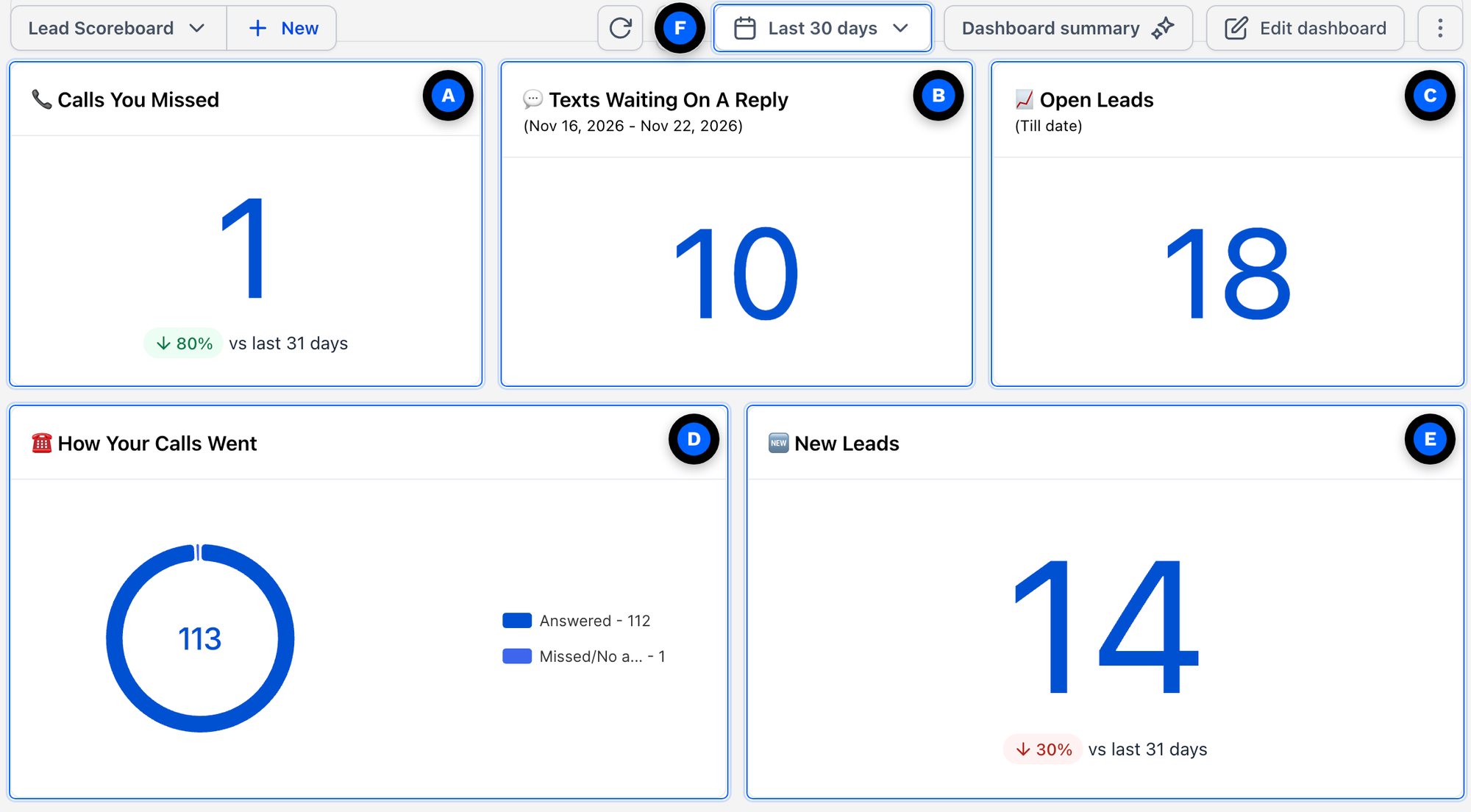
It is the first screen you see. It shows who is waiting on you.

Your Lead Scoreboard. The letters match the list below.
  1. Calls You Missed: calls nobody picked up.
  2. Texts Waiting On A Reply: people who texted you and have not heard back.
  3. Open Leads: every lead still marked Open. Cards in the review columns are not counted.
  4. How Your Calls Went: your calls, answered and missed.
  5. New Leads: leads that came in.
  6. The dates for your call and new lead numbers. Texts Waiting On A Reply and Open Leads show their own dates under the name.

How to do it

  1. Click Dashboard in the left menu.
  2. Start with Calls You Missed and Texts Waiting On A Reply. Those are people waiting on you.
  3. Want a different time frame? Click Last 30 days at the top and pick another one. It is marked F in the picture.

Scroll down for a chart of how many new people reached out each week.

TipGet Texts Waiting On A Reply to zero. Call back every missed call the same day.

Your Lead Scoreboard

Open Leads looks too high

It counts every lead still marked Open, even ones from last year.

Open Leads on your Dashboard.

How to do it

  1. Click Opportunities in the left menu.
  2. Go card by card. Got the job? Drag it into Closed. Not happening? Drag it into Lost. See the page called Mark a lead Won or Lost.
  3. Go back to the Dashboard. The number now shows your real open leads.

The first cleanup can take a while. After that it is a couple of minutes a day.

Have hundreds of old ones? Message us in Slack before you start.

Your Lead Scoreboard

See how your calls are going

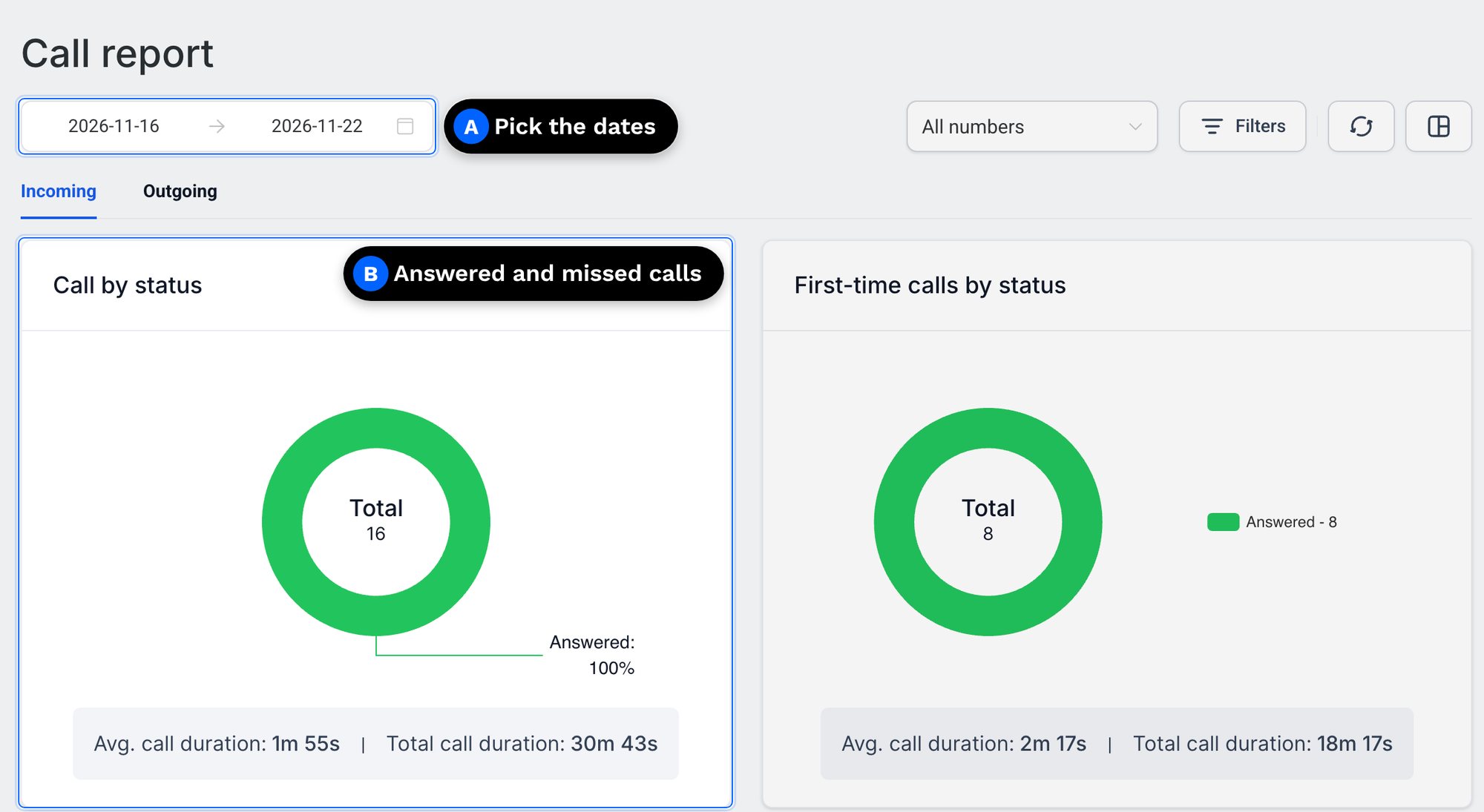
How many calls came in and how many got answered.

The Call report. Call by status shows how many calls were answered.
  1. The dates the report covers. Click them to pick a different week or month.
  2. Call by status: how many calls came in, and how many were answered or missed.

How to do it

  1. Click Analytics in the left menu.
  2. Look at Call by status.
  3. Change the dates at the top to see a different week or month.

TipIf missed calls keep climbing, tell us in Slack.

Leads (Opportunities)

Read your lead board

Where every lead stands.

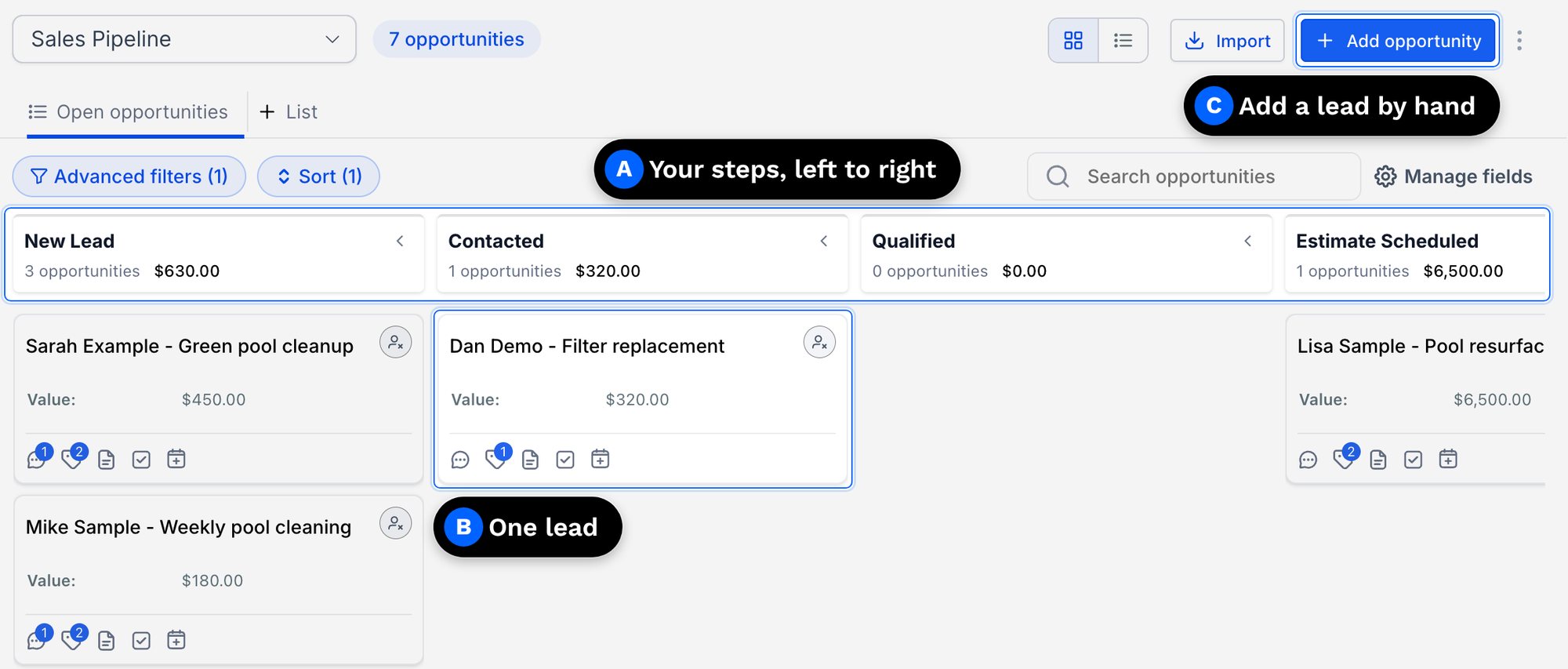
The Opportunities board. Each card is one lead.
  1. The columns are your steps, left to right.
  2. Each card is one lead. It shows the name and what the job is worth.
  3. Add opportunity puts in a lead by hand.

How to do it

  1. Click Opportunities in the left menu.
  2. Drag the bar at the bottom of the board to the right to see the rest of the columns.

New leads land in the New Lead column, at the far left.

Leads (Opportunities)

What each column means

So everybody on your crew uses the board the same way.

  • New Lead: just came in. Nobody has talked to them yet.
  • Contacted: you talked or texted.
  • Qualified: it is a real job and you want it.
  • Estimate Scheduled: you have a time set to go look at it.
  • Estimate Sent: they have your price.
  • Estimate Follow-Up: a few days went by with no answer. Time to check in.
  • Closed: you got the job. Dropping a card here marks it Won.
  • Lost: you did not get it. Dropping a card here marks it Lost.
  • Monthly Follow-Ups: not ready now. Check back with them later.

The columns after Monthly Follow-Ups are for reviews. See the page called Ask for a review after a job.

Leads (Opportunities)

Open a lead

Everything about a lead is in one window.

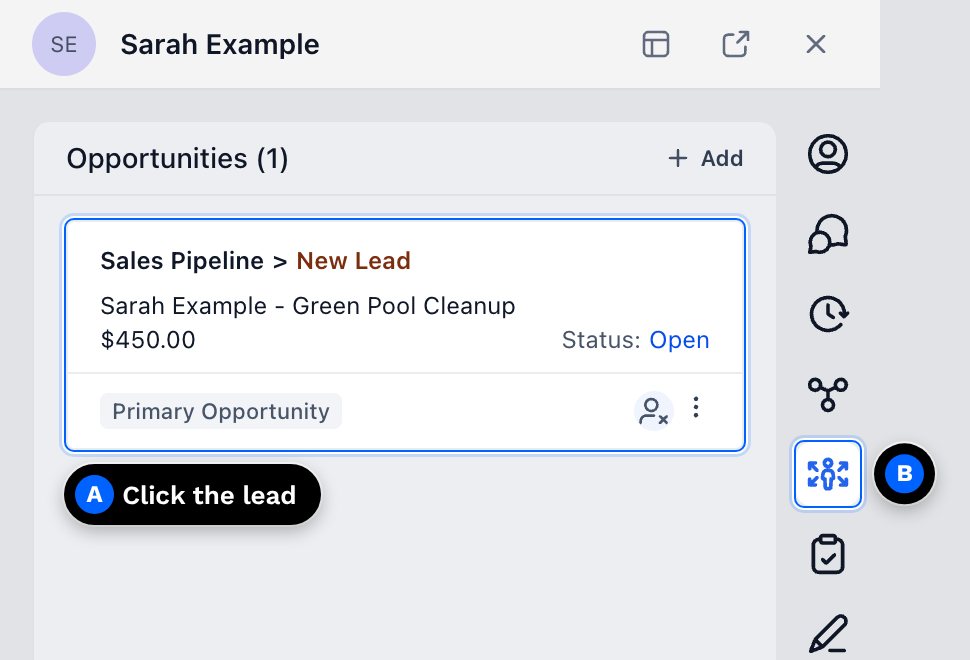
The panel that opens when you click a card.
  1. The lead. Click it to open the lead window.
  2. The Opportunities icon. Click it if the lead is not showing.

How to do it

  1. Click the lead's card on the board. A panel opens on the right.
  2. The lead shows in the panel. It is marked A in the picture. Do not see it? Click the Opportunities icon on the right edge, marked B.
  3. Click the lead. The lead window opens.

The lead window is where you change the column, change what the job is worth, add a note and book an estimate.

Leads (Opportunities)

Move a lead to the next step

When the board matches real life, you know who to chase.

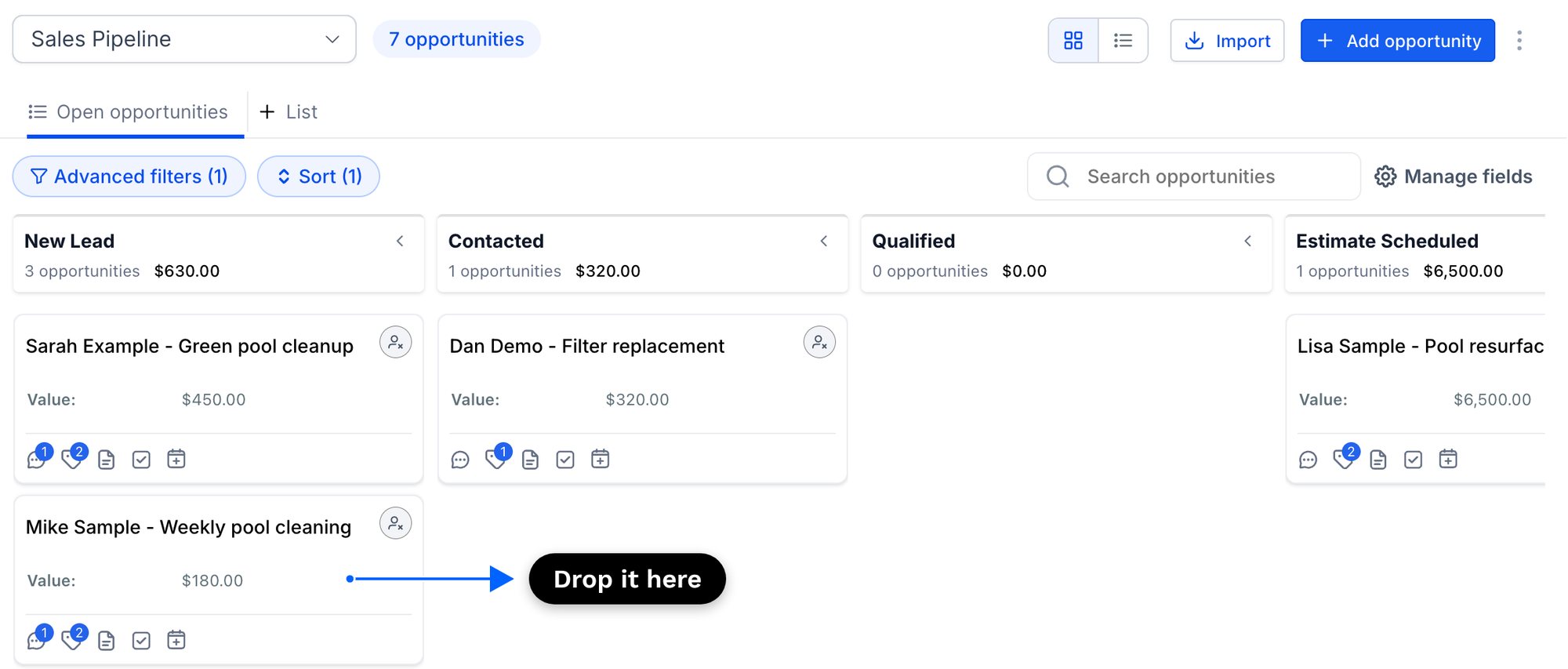
Drag the card to the column it belongs in.

How to do it

  1. Find the lead's card.
  2. Click and hold the card.
  3. Drag it to the column it belongs in and let go.

Can't drag it? Open the lead, click the Stage box, click the column you want, then click Update. See the page called Open a lead.

Leads (Opportunities)

Mark a lead Won or Lost

This is how a lead comes off your Open Leads number.

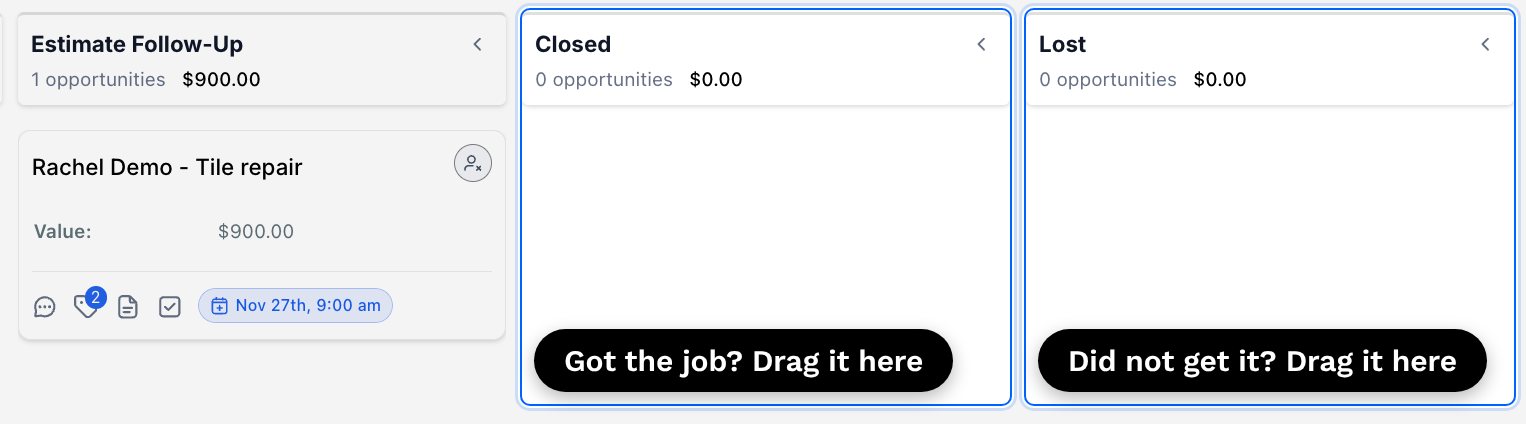
Closed and Lost sit side by side, to the right of Estimate Follow-Up.

How to do it

  1. Click Opportunities in the left menu. Drag the bar at the bottom of the board to the right until you see Closed and Lost.
  2. Got the job? Drag the card into Closed. The app marks it Won for you.
  3. Did not get it? Drag the card into Lost. The app marks it Lost for you.

Won and Lost cards leave your board. The board only shows open leads.

A job you dragged into Closed moves itself to the review columns. See the page called Ask for a review after a job.

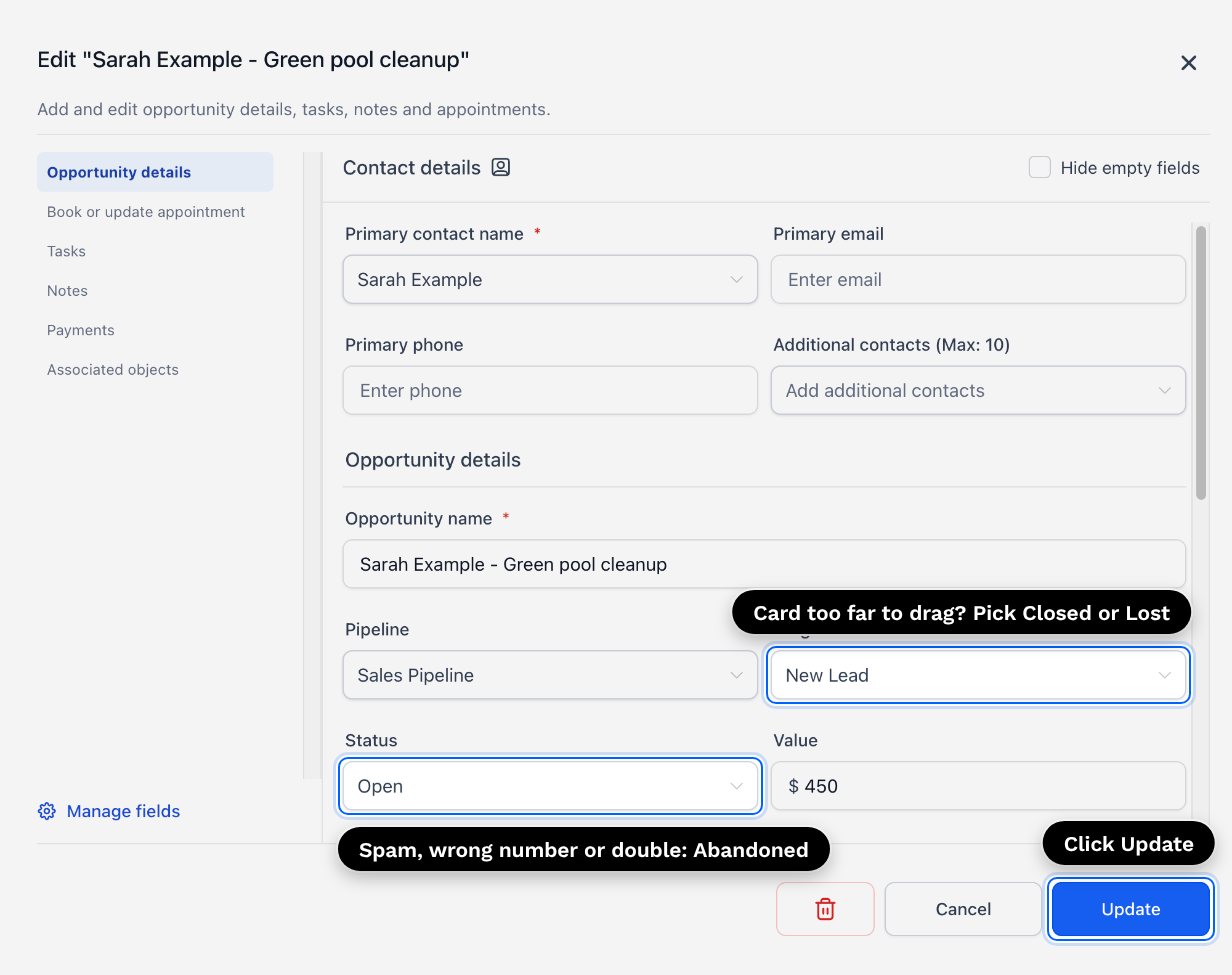
Card too far away to drag? Open the lead, click the Stage box, click Closed or Lost, then click Update. It does the same thing. See the page called Open a lead.

Use Stage, not Status. Changing only Status to Won skips the review columns.

Lost does not delete the lead. It only comes off your Open Leads number.

Spam, wrong number or a double entry? Open the lead, click the Status box, click Abandoned, then click Update.

The lead window. Stage is for Closed or Lost. Status is for Abandoned, or to reopen a lost lead.

Leads (Opportunities)

Ask for a review after a job

More good reviews, more calls from Google.

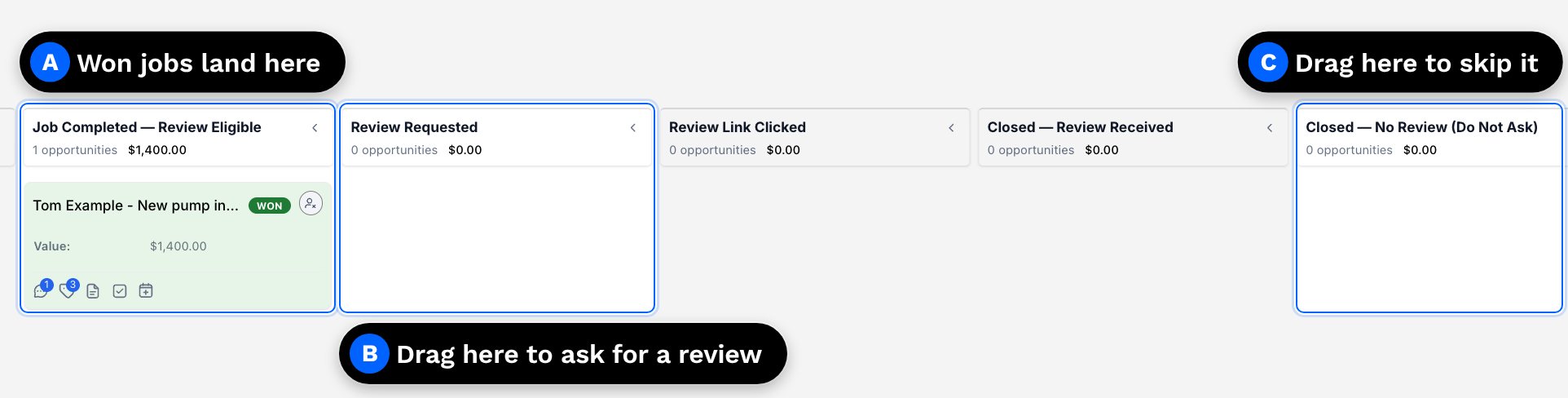
The five review columns, at the far right of your board. Click the picture to make it bigger.
  1. Job Completed — Review Eligible: every job you drag into Closed lands here on its own.
  2. Review Requested: drag the card here and the customer gets the review request.
  3. Closed — No Review (Do Not Ask): drag the card here to skip this customer.

How to do it

  1. Drag the job's card into Closed. See the page called Mark a lead Won or Lost. The card leaves your board. That is normal. Your board only shows open leads.
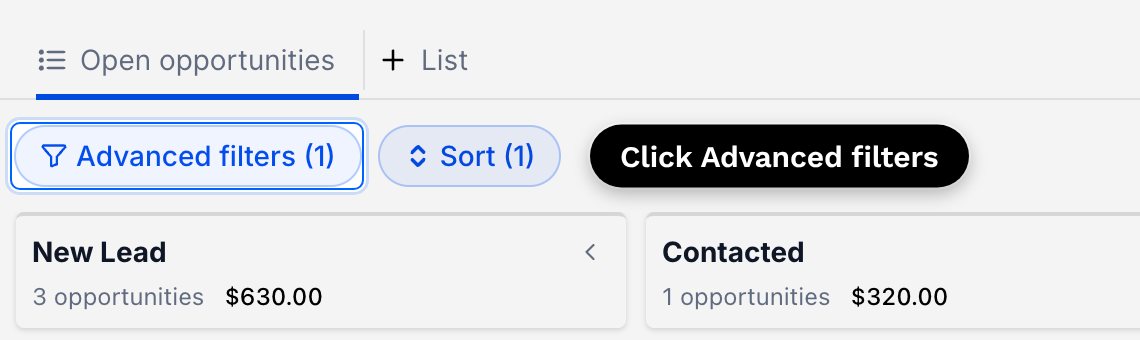
  2. To see your Won jobs, click Opportunities in the left menu, then click Advanced filters.
    Advanced filters sits above the first column.
    Advanced filters sits above the first column.
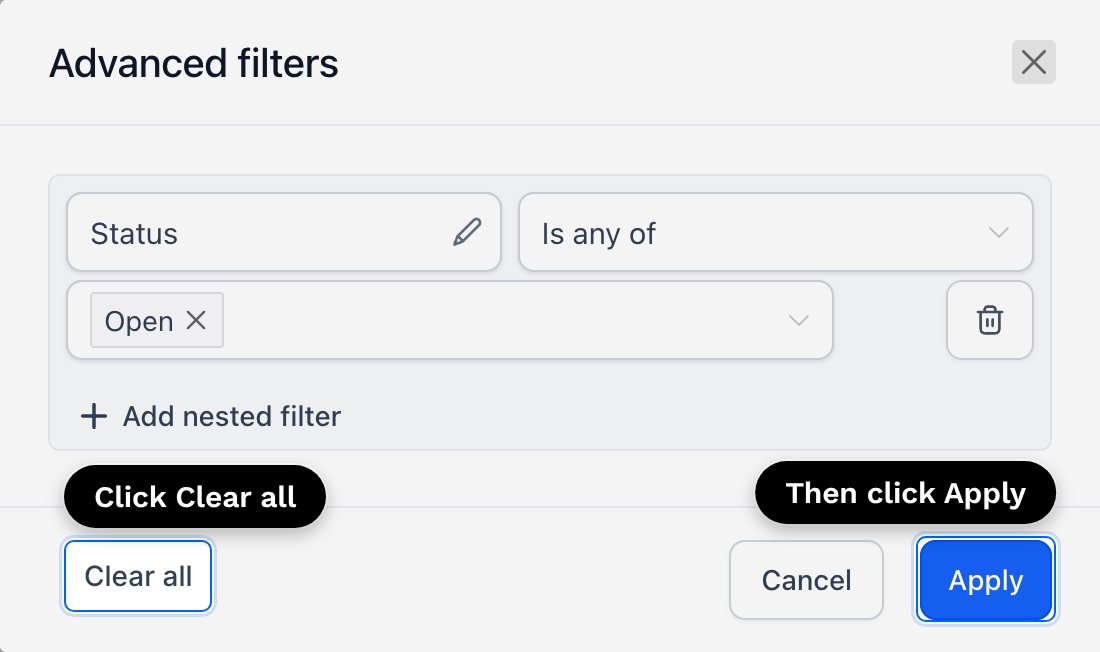
  3. Click Clear all, then click Apply. Your Won jobs show up on the board. Lost ones show too. Ignore them.
    Clear all is at the bottom left. Apply is at the bottom right.
    Clear all is at the bottom left. Apply is at the bottom right.
  4. Drag the bar at the bottom of the board all the way to the right. The Won job is in Job Completed — Review Eligible.
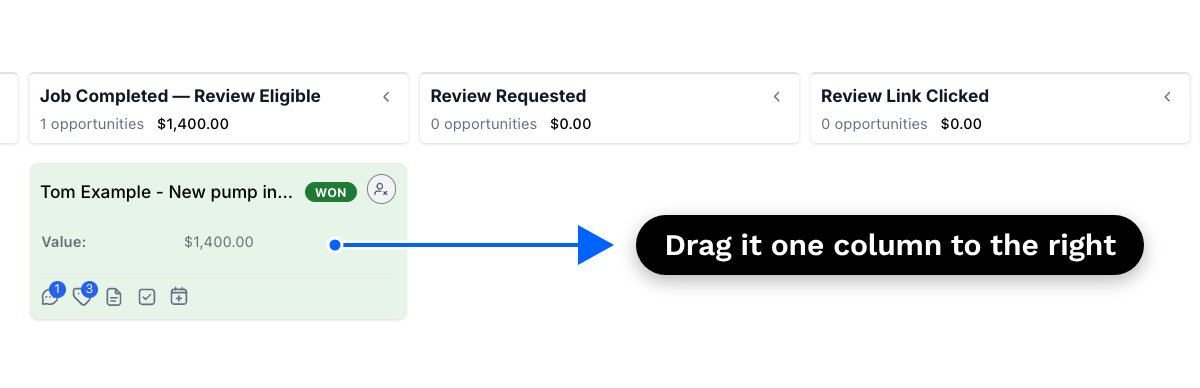
  5. Want a review from them? Drag the card one column to the right, into Review Requested. That sends the request.
    One column to the right sends the request.
    One column to the right sends the request.
  6. Do not want to ask? Drag the card to the last column, Closed — No Review (Do Not Ask).

After that the card moves itself. It goes to Review Link Clicked when they open the link, and to Closed — Review Received when the review comes in.

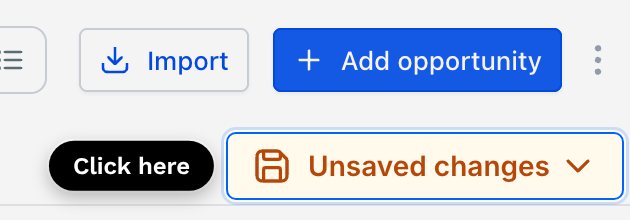
Want your board back to open leads only? Click Unsaved changes at the top right, then Discard changes.

TipOnly send the request when the customer is happy with the work.

Unsaved changes sits at the top right of the board, under Add opportunity.

Leads (Opportunities)

Add a lead by hand

For the ones that did not come through your phone or website. A neighbor, a referral, a walk-up.

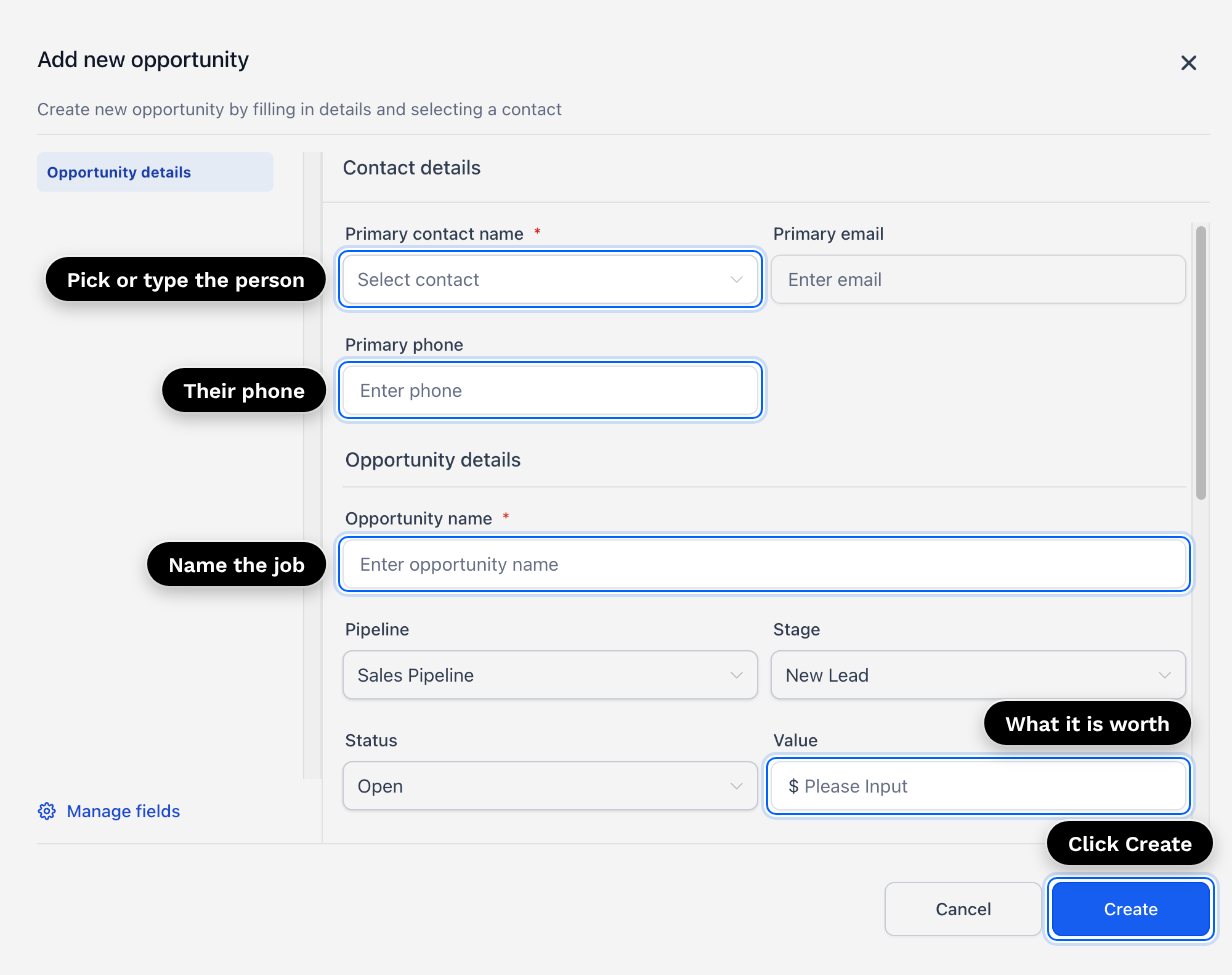
The window that opens when you click Add opportunity.

How to do it

  1. Click Opportunities in the left menu, then click Add opportunity at the top right.
  2. Click the first box, Primary contact name, and type their name.
  3. Already a customer? Click their name in the list. New person? Click the line in the list that ends in (Create new contact).
  4. For a new person, click Primary phone and type their number.
  5. Click Opportunity name and type a name for the job, like Smith fence repair.
  6. Click Value and type what the job is worth. Leave Stage on New Lead unless you already talked to them.
  7. Click Create.

Leads (Opportunities)

A past customer wants another job

One card per job, so last year's work and this year's stay separate.

How to do it

  1. Click Opportunities in the left menu, then click Add opportunity at the top right.
  2. In the first box, start typing their name and pick them from the list.
  3. Click Opportunity name and type a name for the new job.
  4. Click Value and type what it is worth.
  5. Click Create.

Their phone number, notes and old jobs stay attached to them.

Leads (Opportunities)

Change what a job is worth

The price changed after you saw the job.

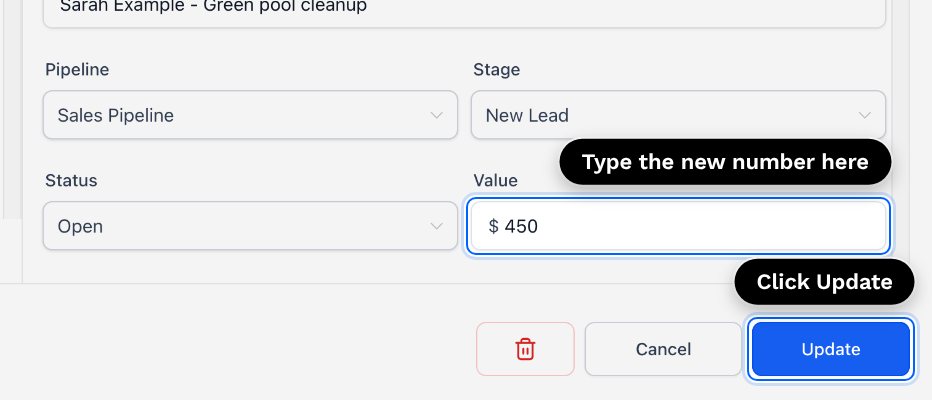
The bottom of the lead window. Value is on the right.

How to do it

  1. Open the lead. See the page called Open a lead.
  2. Click the Value box, erase the old number and type the new one.
  3. Click Update.

Leads (Opportunities)

A lost lead came back

They said no in March and called again in June.

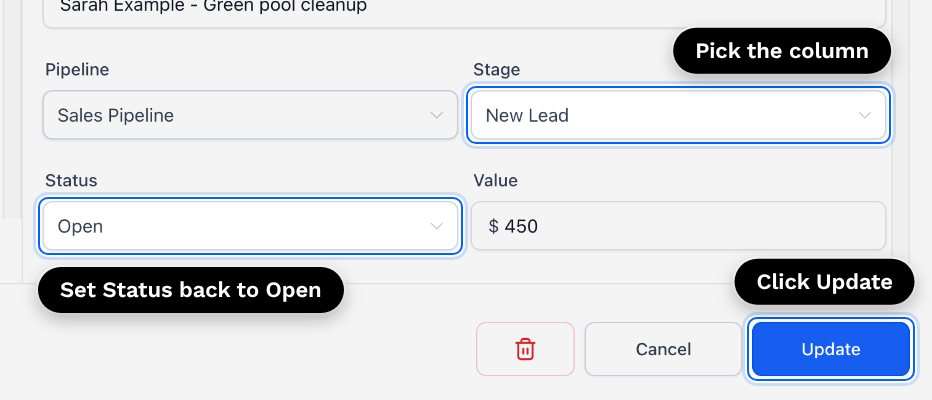
The bottom of the lead window. Your Status will say Lost. Click it and pick Open.

Lost leads are not on your board, so you find them through Contacts.

How to do it

  1. Click Contacts in the left menu. Type their name in the search box and click their name. See the page called Find a customer.
  2. Their lead shows on the right side of the screen. Click it. Do not see it? Click the Opportunities icon on the right edge. See the page called Open a lead.
  3. Click the Status box, then click Open.
  4. Click the Stage box and click the column where they stand now.
  5. Click Update.

Leads (Opportunities)

Add a note to a lead

Gate code, dog in the yard, what you quoted. Write it down once.

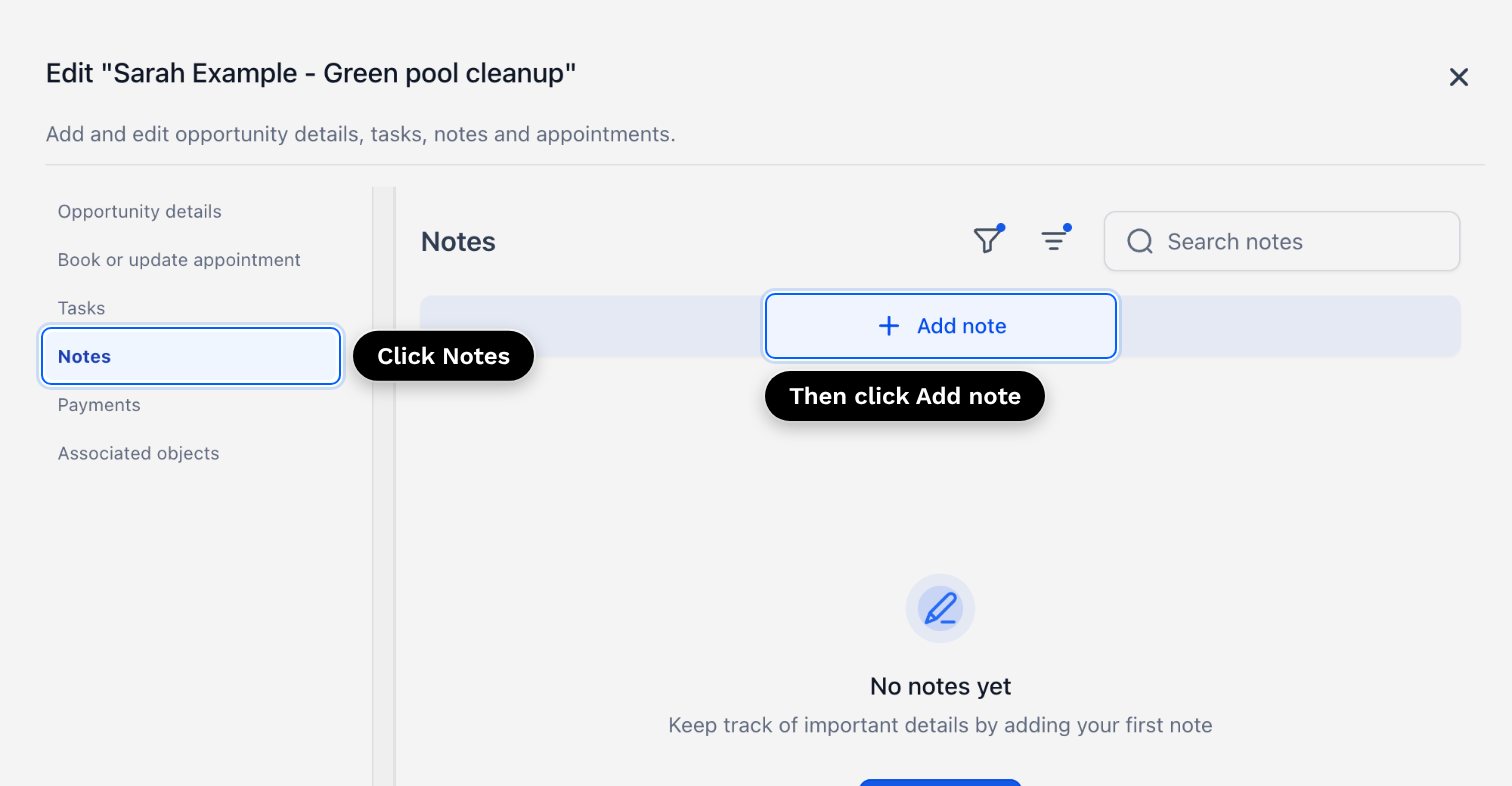
Notes inside the lead window.

How to do it

  1. Open the lead. See the page called Open a lead.
  2. Click Notes on the left side of the lead window.
  3. Click Add note and type your note.
  4. Click Save.

Leads (Opportunities)

Put an estimate on the calendar

So you and your crew know when to show up.

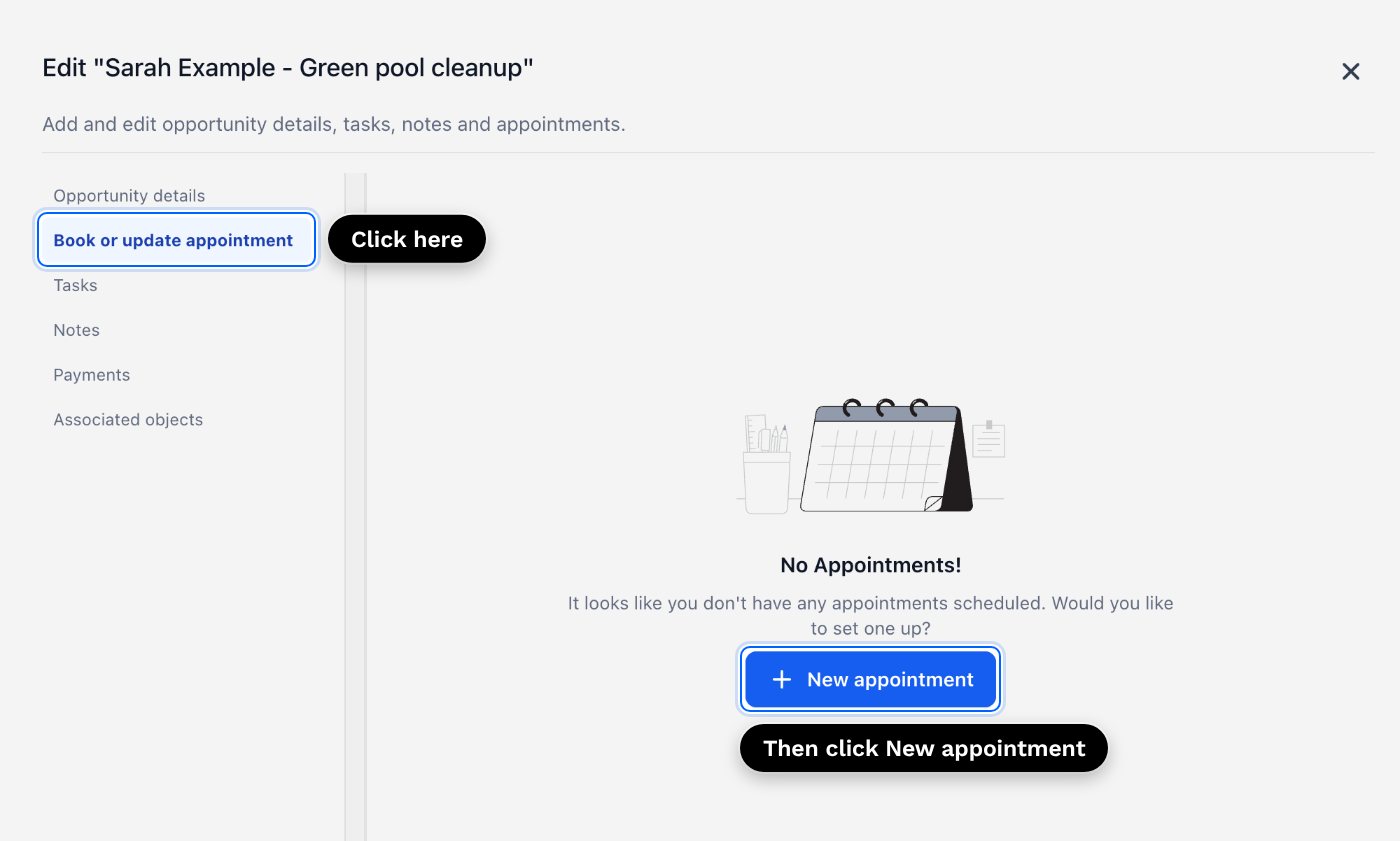
Book or update appointment inside the lead window.

How to do it

  1. Open the lead. See the page called Open a lead.
  2. Click Book or update appointment on the left side of the lead window.
  3. Click New appointment.
  4. Pick the day under Date and the time under Slot.
  5. Click Book appointment.
  6. Click the X at the top right to close the lead window. If the side panel is still open, close it with its X too. Then drag the card to Estimate Scheduled.

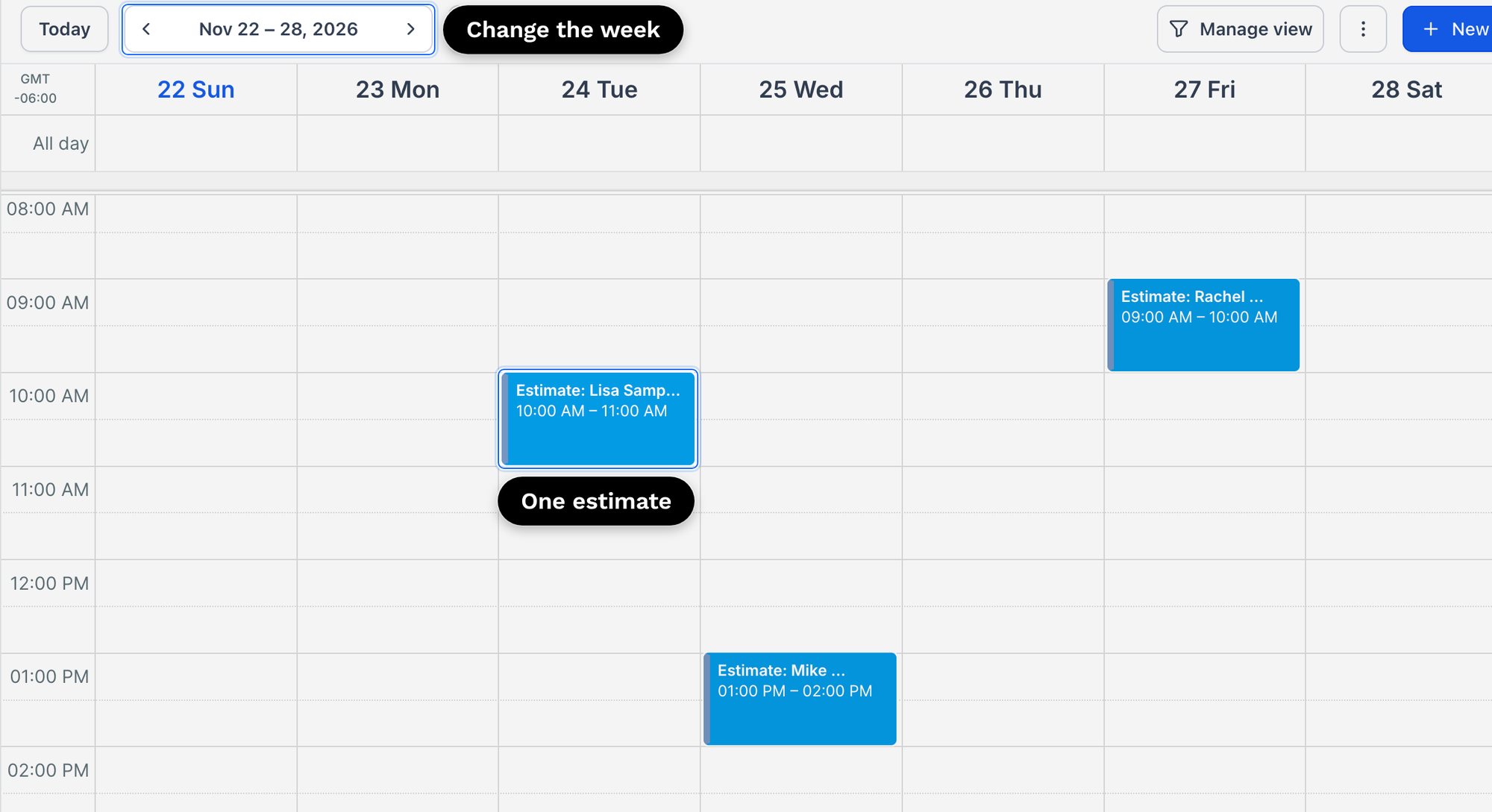
To see your whole week, click Calendars in the left menu.

Calendars shows the week. Each blue block is one estimate.

Calls and texts (Conversations)

A new lead just came in

Call them fast. Clean up the card after.

How to do it

  1. You get a text with a link. Tap it to see who they are.
  2. Call them from your phone.
  3. Back at your computer, click Opportunities in the left menu. Find their card in New Lead and drag it to Contacted.

  4. Add a note about what they want. See the page called Add a note to a lead.

TipDid not reach them? Text them, and try again before the day is over.

Calls and texts (Conversations)

Reply to a text

See everyone who texted and has not heard back.

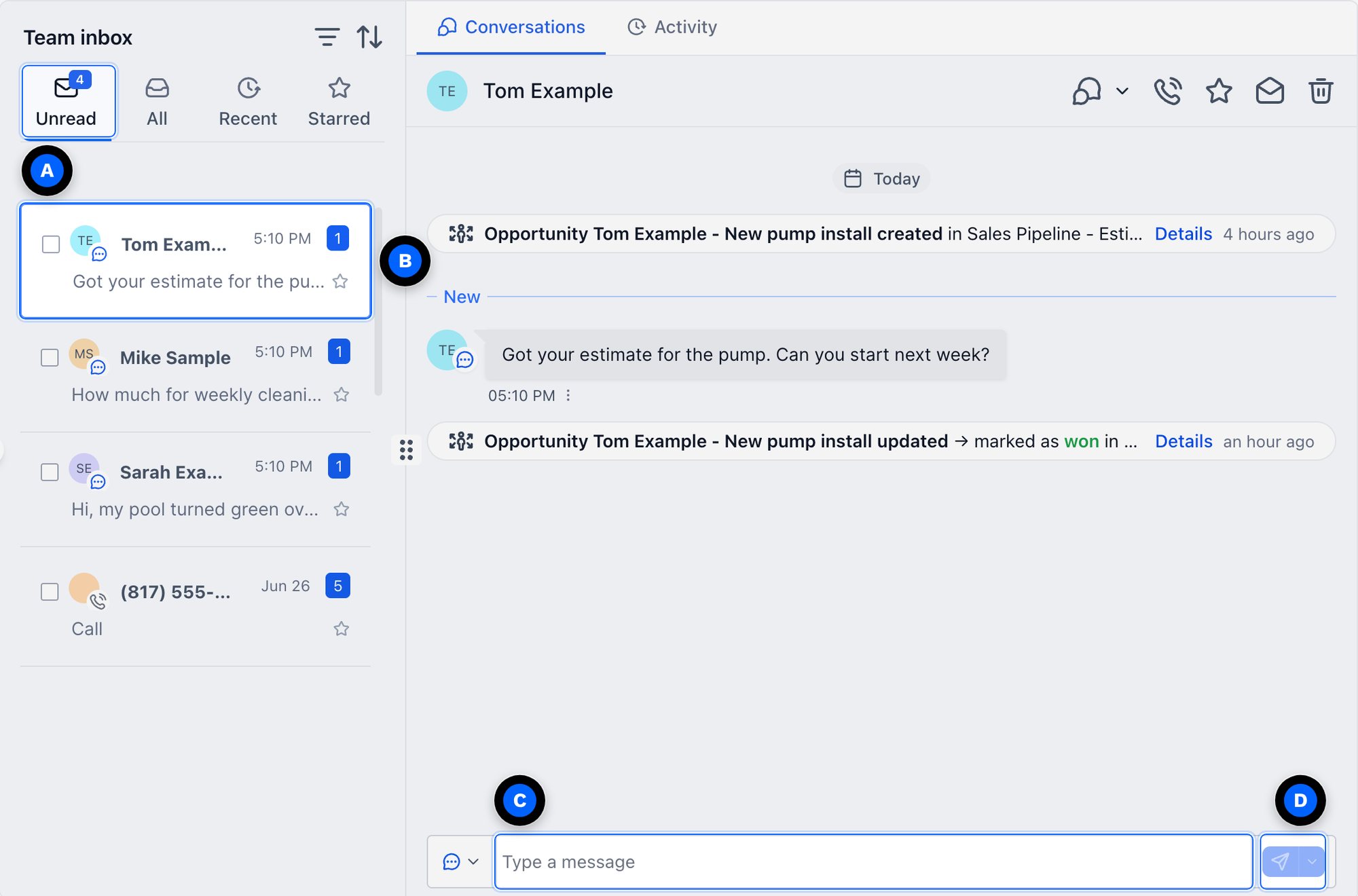
Conversations. Unread lists the people waiting on you.
  1. Unread: texts and calls you have not answered.
  2. The person. Click their name to open their texts.
  3. The reply box. Type here.
  4. The arrow sends your text.

How to do it

  1. Click Conversations in the left menu.
  2. Click Unread to see who is waiting.
  3. Click the person's name.
  4. Click in the box at the bottom that says Type a message and type your reply.
  5. Click the blue arrow to send it.

Calls and texts (Conversations)

Call back a missed call

People who do not get a call back call the next guy.

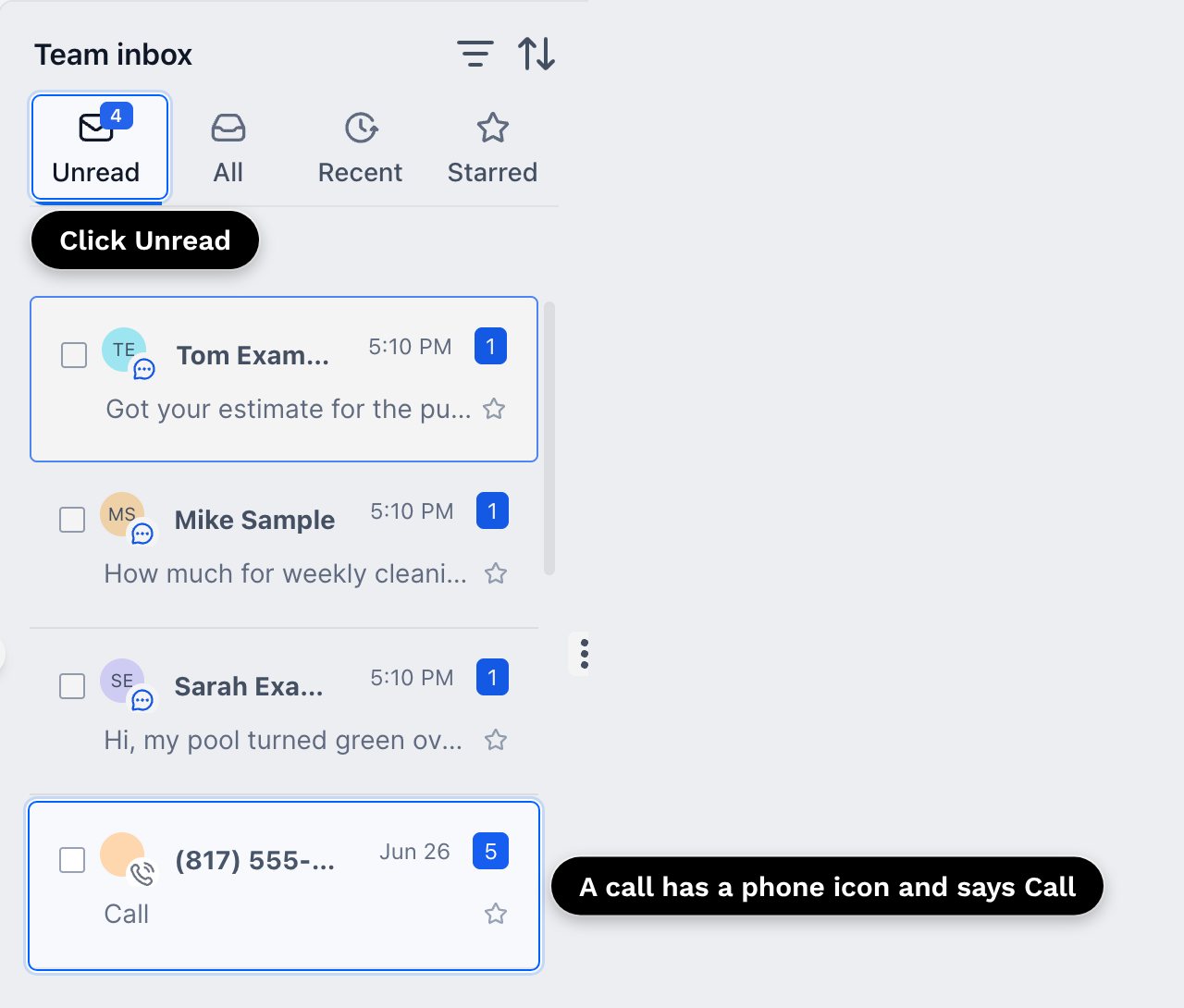
Calls sit in the same list as texts.

How to do it

  1. Click Conversations in the left menu, then click Unread.
  2. Look for a row with a small phone icon that says Call. That is someone who called.
  3. Click the row to see their number.
  4. Call them back from your phone.

TipThe Calls You Missed box on your Dashboard is only a count. Conversations shows you who.

Customers (Contacts)

Find a customer

Pull up anybody in a few seconds.

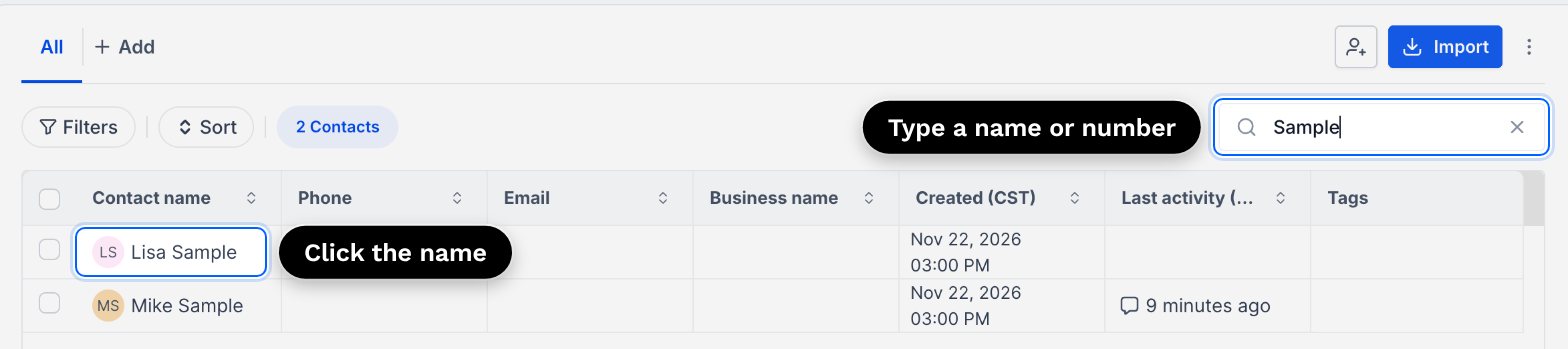
Contacts, with a name typed in the search box.

How to do it

  1. Click Contacts in the left menu.
  2. Type their name or phone number in the search box.
  3. Click their name to open them.

Get help

Ask us

We answer in Slack.

The same reminder sits at the bottom of your Dashboard.

How to do it

  1. Open your Slack channel with us.
  2. Tell us what you were trying to do.
  3. Send a photo of your screen if you can. It gets you an answer faster.

Get help

Quick fixes

The questions we hear most.

  • My Open Leads number is too high. See the page called Open Leads looks too high.
  • A lead is in the wrong column. Drag it to the one it belongs in.
  • I added a lead twice. Open one of them, click the Status box, click Abandoned, then click Update. See the page called Open a lead.
  • I got a spam call or a wrong number. Open that lead, click the Status box, click Abandoned, then click Update.
  • I do not see a menu item that somebody else has. See the page called Menu items you may not have.
  • The new lead text goes to the wrong phone. Message us in Slack.
  • I forgot my password. Message us in Slack and we will reset it.